Select Version of EA Desktop:
The Export Seg-P1 tool exports a Seg-P1 file based on the geometry of the seismic selected for export. The Export Seg-P1 tool exports one file per coordinate reference system (CRS) with headers separating each seismic item.
To export seismic record to a Seg-P1 file:
-
Select the target records in the Seismic grid.
-
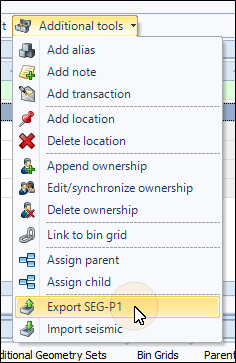
Click Additional Tools and select Export Seg-P1.
 Tip:
Tip:Alternatively, you could right-click and select Additional Tools>SEG-P1 from the context menu.
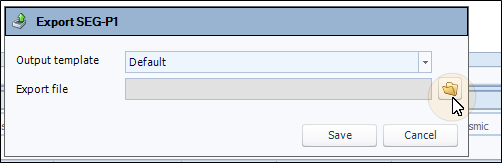
The Export Seg-P1 window opens.
-
From the drop-down, select Output Template.
-
Click the folder icon and browse to the save location.
-
Enter a file name, then click Save. The file path will display in the Export Seg-P1 window.
-
Click Save.
The Seg-P1 files populate and save to the specified location.
If the selected records don’t have geometry associated with them you may get the following error:
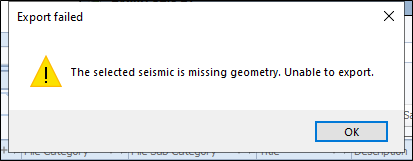
Click OK to clear the dialog, then click Cancel to exit the process
The Export Seg-P1 tool exports a SegP1 file based on the geometry of the seismic selected for export. The Export SegP1 tool exports one file per coordinate reference system (CRS) with headers separating each seismic item.
To export seismic record to a Seg-P1 file:
-
Select the target records in the Seismic grid.
-
Click Additional Tools and select Export Seg-P1.
Tip:Alternatively, you could right-click and select Additional Tools>SEG-P1 from the context menu.
The Export Seg-P1 window opens.
-
From the drop-down, select Output Template.
-
Click the folder icon and browse to the save location.
-
Enter a file name, then click Save. The file path will display in the Export Seg-P1 window.
-
Click Save.
The Seg-P1 files populate and save to the specified location.
If the selected records don’t have geometry associated with them you may get the following error:
Click OK to clear the dialog, then click Cancel to exit the process